Sententiae Latinae
Using Sententiae Latinae
Sententiae Latinae allows you to test yourself on the translation of simple sentences from Latin into English.
[TOP]
Setting Up a Test
When you first run Sententiae Latinae , the program displays a Setup window.
Start at the top of the window in the frame headed Load sentence file.
Click on the Load Sentence File button and choose the sentence file you wish to be tested on; this will be a text (.txt) file .
Once a sentence file is loaded, the Setup window will alter accordingly, as in the following example:-
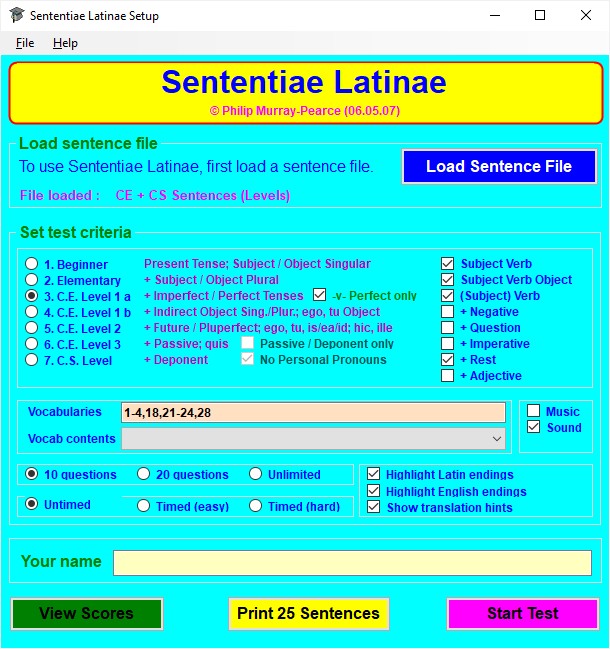
Now move to the frame headed Set test criteria.
The upper part of this lets you choose a level of sentence difficulty for the test. Beginner level involves only the Present tense with a Singular Subject and/or Object; each higher level from 2 to 7 adds extra features, as shown in purple next to the number and name of the level. The selection boxes beside levels 3, 6, & 7 provide certain variations: -v- Perfect only allows the Perfect tense of only regular 1st conjugation verbs; Passive / Deponent only allows just those voices; and No Personal Pronouns limits sentences accordingly.
In addition, the selection boxes to the right of the levels allow you choose the structure of the sentences in a test (whichever level has been selected. By default these are set to give positive statements containing at least a verb, together with a possible Subject, Object, and/or Rest (i.e. an adverb or prepositional phrase); + Negative adds negative statements, + Question adds questions with a question-word or -ne. + Imperative adds commands, and + Adjective add the possibility of an adjective appearing somewhere in the sentence.
The middle part lets you set which vocabularies within a sentence file are to be used to form the sentences in a test; Vocab contents shows what each vocabulary contains, if this information has been provided by the file's creator.Choose the vocabulary lists you wish to be tested on by typing their numbers in the Selection box. Numbers must be separated by a comma; groups of lists may be indicated by a hyphen. For example :- 3,5-7,10-15,20 selects vocabulary lists 3, 5, 6, 7, 10, 11, 12, 13, 14, 15, and 20. You may also select lists by clicking on them in the Vocab contents box.
The lowest part lets you choose:-
Please note that, if you are using the Demo version of Sententiae Latinae , certain options will be unavailable. In particular, tests may be on Levels 1-3 only and they may have no more than 10 questions .
If you have the single-user version of Sententiae Latinae, type your name in the box labelled Your name (in the network version, the logon name of the user is entered here automatically).
When you are ready to start a test, click on the purple Start Test button.
Alternatively, click on one of the other two buttons:-
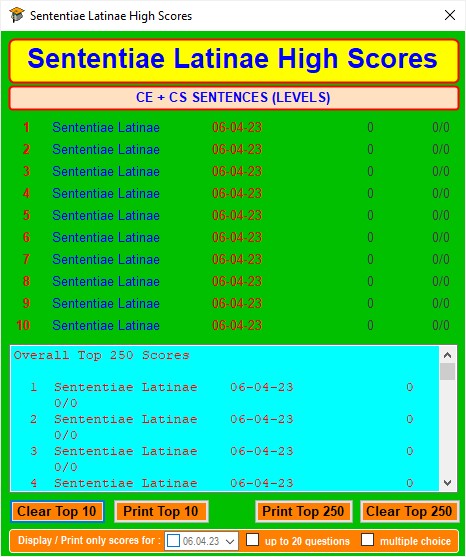
View Scores
(see Viewing and printing
high scores
) displays the top 10 and top
250 scores previously obtained on tests on the vocabulary file currently
loaded; the scores may be cleared or printed out if
required.
Print Test (see Printing a test ) opens a Windows print dialog box to allow the printing of a test based on the vocabulary file currently loaded and the test criteria currently set.
Demo version of Sententiae
Latinae
The Demo version of Sententiae Latinae allows vocabulary files
with a maximum of only 15 items (instead of 1000)
and disables certain test criteria.
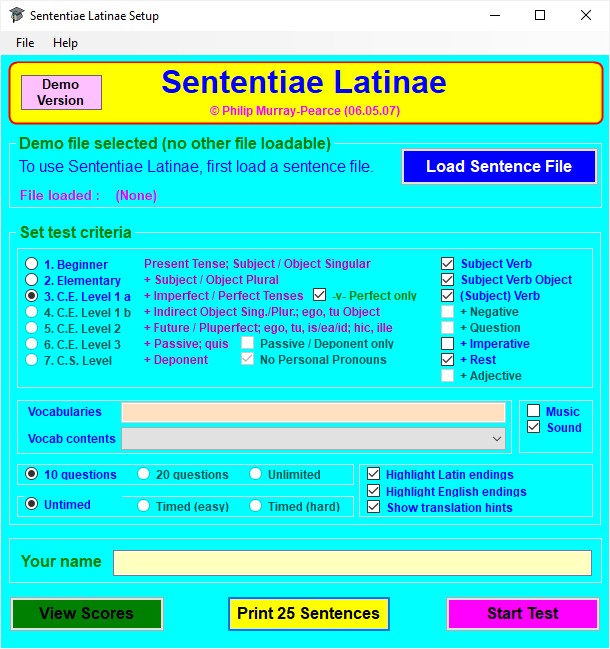
The Setup window will appear as below.
Click on the
blue Load Sentence File button to load the Demo sentence vocabulary list. Then set test criteria as
for the full version, though Levels 4-7 and sentences containing
negatives, questions, and adjectives are unavailable; in
addition, tests may only be untimed and may consist of
no more than 10 questions.
[TOP]
Taking a Test
When you press the purple Start button in the Setup window, this window disappears and the Sententiae Latinae Test windows replaces it.
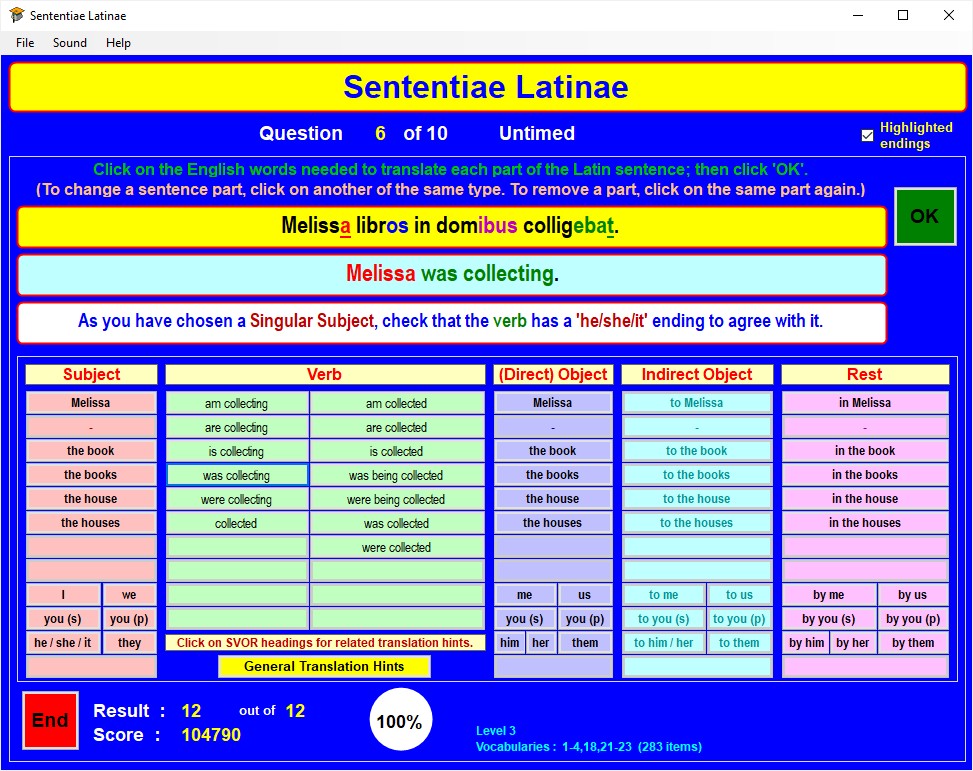
The example above shows an answer not yet completed.
When a question is first displayed, the Latin sentence to be translated appears in the yellow box near the top of the window; any grammatical endings will be highlighted in colour (red for Subject, green for Verb, blue for Direct Object, pale blue for Indirect Object, and purple for any other), if this option was selected when setting up the test.
The pale blue box below this is where the answer will be built up, under which is a white box containing translation hints, if these were selected when setting up the test.
Below these three boxes are columns headed Subject, Verb, (Direct) Object, Indirect Object, and Rest . Each column contains possible translations to match the corresponding Latin part of the sentence; generally only one possibility in each column is correct. To build up a full translation, click on the appropriate word/phrase in each column; this will then appear in an appropriate position in the pale blue answer box, highlighted to match its column colour if this option was selected when setting up the test.
If you realize you have made a mistake after entering a word/phrase from a column, either click on another word/phrase in the same column to replace it or click on the same word/phrase (in the same column) to remove it .
It does not matter in which order you enter the parts of your answer. In the example shown, the user could have clicked first on Melissa in the Subject column and then on was collecting in the Verb columns or vice versa; the result in the pale blue answer box would be the same.
Click on the yellow General Translation Hints box, if you wish to view some general hints on translating, as below for Levels 1-5 (hints for Levels 6-7 include Passive verbs) :-
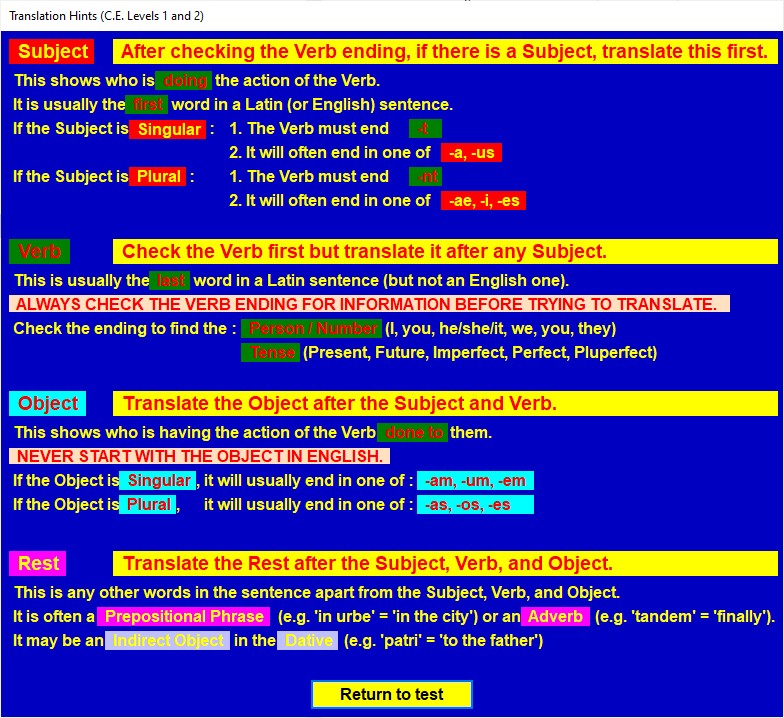
Clicking on the pale yellow Subject, Verb, (Direct) Object, Indirect Object, and Rest column heading boxes will display a hint relevant to the column concerned, if the option Show translation hints has been selected when setting up the test.
Once you have finished entering all parts of your answer, click on the green OK button to find out whether or not you are correct.
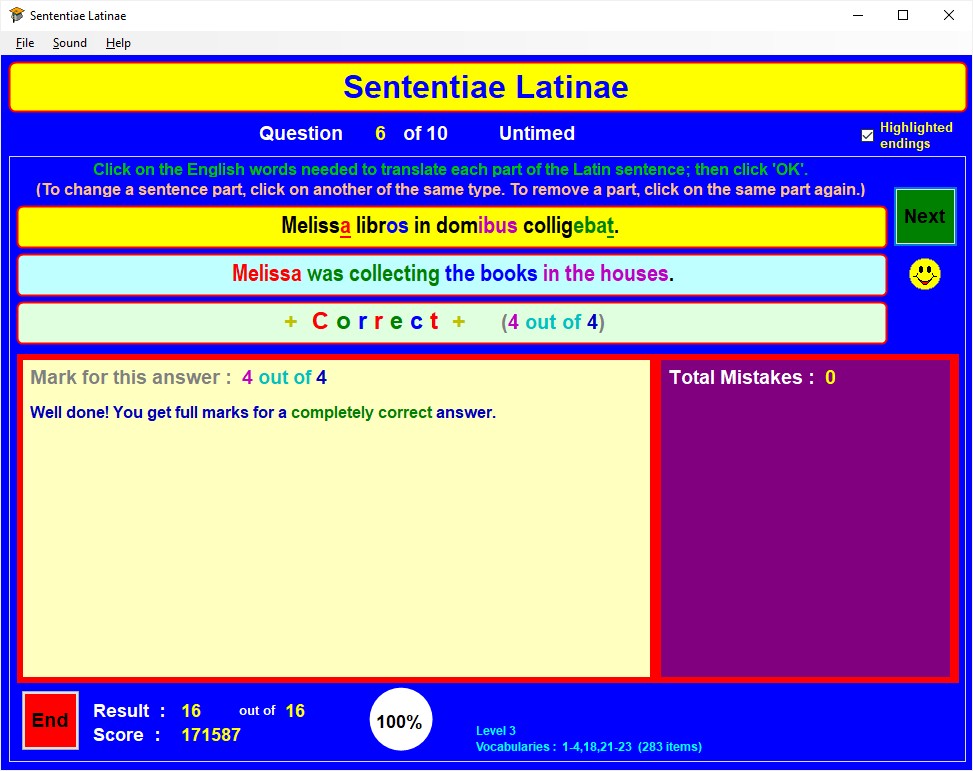
If you are correct, the screen will change to indicate this, as above.
If there was more than one correct answer to the question (as for e.g. miles fugit. = The soldier is running away. / The soldier ran away.), you can toggle the alternatives by clicking on the pink Toggle possible answers button which will appear to the right of the answer displayed.
At the bottom are your current mark and score , the former relating to the number of words you have correctly translated in questions so far and the latter being based both on your mark and on the test's difficulty level as determined by the options chosen when setting up.
You can then click on the green Next button to move on to the next question or on the red End button to end the test.
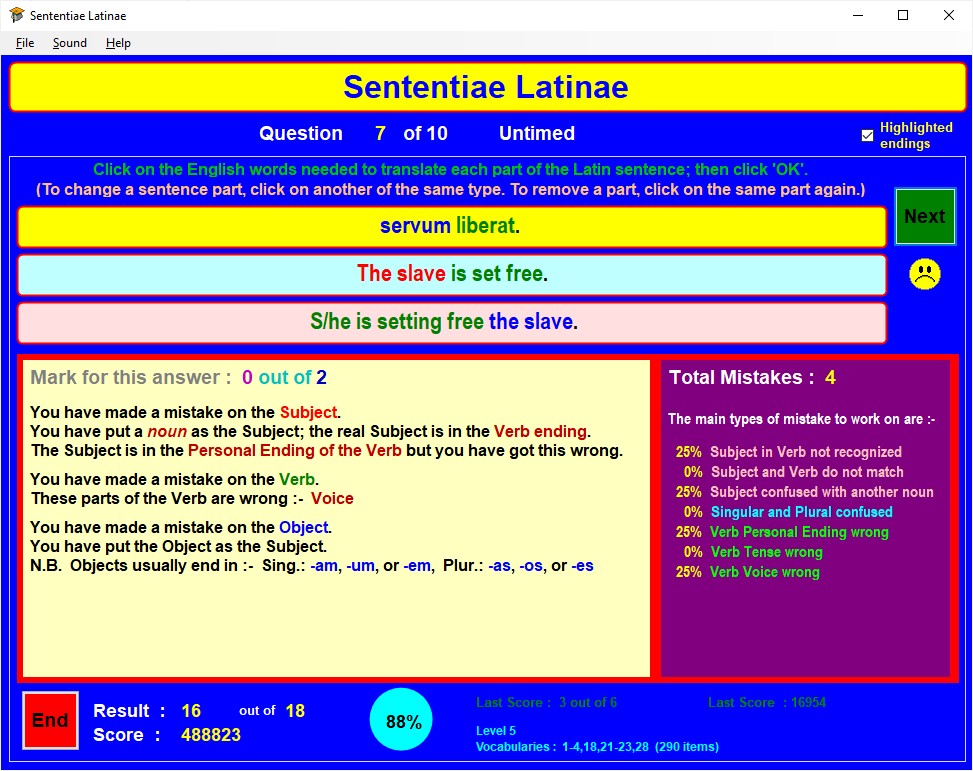
If you are incorrect, the screen will change to something like that above.
The correct answer will appear in a pink box below your answer. Below this, the pale yellow panel to the left gives your score for that question, with points sometimes being awarded for a partially correct answer; it also gives some details of the type of mistake(s) you have made. The purple panel on the right gives an analysis of the types of mistakes made in the whole test so far.
As for a correct answer, your current overall mark and score are shown. Click on the green Next button to continue or on the red End button to quit .
Displayed Test and Score Information
At the top of the window:-
At the
bottom of the window:-
Ending a Test
A test may end in one of four ways, after which a message box appears:-
Further Notes on Sententiae Latinae Tests
1. Select Sound from the File menu and then click on the appropriate menu item.
2. On the computer keyboard, press F3 to toggle music or F4 to toggle sound effects.
[TOP]
Printing a Test
Using Sententiae Latinae, it is possible to print out a set of 25 sentences, with a separate page of answers, for use away from the computer.
In the Setup window, press the yellow Print 25 Sentences button.
This opens standard Windows printer dialog windows from which a printer may be set up.
The sentences produced will be in accordance with the vocabularies and other relevant criteria, such as difficulty level, selected in the Set test criteria part of the Setup window.
[TOP]
Viewing and Printing High Scores
Sententiae Latinae keeps a record of the top 250 scores achieved by users on a particular sentence file. This is accessed from the Setup window. Lists of scores can be printed out.
Viewing High Scores
Click on the green View Scores button in the Setup window.
This opens the Sententiae Latinae High Scores window which shows the Top 10 scores in its upper part and a scrollable list of the Top 250 scores in its lower part.
Score information provided
Printing High Scores
In the Sententiae Latinae High Scores window, click on either the Print Top 10 or the Print Top 250 buttons according to which scores you wish to print out. Doing so brings up a standard Windows print dialogue box.
Note that, if you are using the network version of Sententiae Latinae, you must enter the 'print' password before being allowed to proceed with printing.
Score information provided
To save paper, Print Top 250 will print the first ten entries and then only those where Name is other than Sententiae Latinae (the default if there is no named user for an entry).
Clearing High Scores
If you wish to clear the high score tables, click on the Clear Top 10 and/or Clear Top 250 buttons in the Sententiae Latinae High Scores window. In the single user version of Sententiae Latinae, you will be asked to confirm your request; doing so clears the appropriate scores irreversibly.
Note that, if you are using the network version of Sententiae Latinae, you must enter the 'clear' password before any scores are cleared.
Further Notes on High Scores
[TOP]
Preparing Vocabulary Lists for Use with Sententiae Latinae
Files, Lists, and Formats
Vocabulary lists for Sententiae Latinae are stored as text (.txt) files; these can be prepared using any text editor, such as Notepad or Wordpad.
Files are stored within the Sententiae Latinae application folder in the folder Sentences.
Files should be saved with their encoding set as Unicode or UTF-8 .
A file must contain at least 5 verbs and 5 nouns and no more than 1000 items of any sort , with a maximum of 100 adjectives and 50 prepositions.
Vocabulary numbers for the items in a file must be in the range 1-100.
The format for
each type of item in a sentence file is as below.
Verb Format
Latin Present Stem, Latin Perfect Stem, Latin PPP, English Present Stem, English Perfect Stem, English PPP, Vocabulary Number (1-100), Lexical Category 1, Lexical Category 2
e.g. scrib,scrips,*script,write,wrote,written,1,i,s
Lexical Category 1
(Transitive/Intransitive)
- any one of:-
a
(transitive animate)
o (transitive inanimate non-portable)
p
(transitive
inanimate portable)
g (transitive general)
l (transitive
location)
i (intransitive general)
d (dative transitive - next line must start
with $
)
e
(dative intransitive)
x
(refer to list of allowable objects and/or subjects - next line must start with
$
)
Lexical Category
2 (Prepositional) - any one
of:-
m (motion : a, ad, circum, e, in+Acc, per,
trans)
q (motion; cum)
s (static : in +Abl,
prope)
f (from : a, e)
r
(about : de)
t (to :
ad)
w (with : cum)
- (no
preposition)
* before Latin Supine Stem indicates stem used only for Future
Participle
* before
English Present Stem indicates word not used with
Present Continuous Tense
~
after
Latin Present Stem indicates Object in
Dative
# after Latin
Present Stem indicates Object in Genitive
% after Latin
Present Stem
indicates Object in Ablative
The list after $ must have the following parts:-
a) the Latin Present Stem of the verb
b) a comma
c) Object categories , given by
one or more noun lexical category letters
and/or | followed by a list of noun Nom stems each followd by : and the Declension number and \
d) optionally a comma followed by Subject categories
in the same form as the Object
categories.
e.g. $capi,abckw
$dic,|verb:2\
$aedifica,kw|mur:1\navis:3\
$impera~,b,a
$libera,|ancill:0\serv:1\,a
$pell,|navis:3\,a|vent:1\tempestas:3\
$reg,v|civis:3\incol:0\Roman:1\urbs:3\terr:0\,|rex:3\regin:0\
Noun Format
Latin Nom S Stem, Latin Gen S Stem, Latin Declension (and Gender if ambiguous or not typical for the declendion), English Singular, English Plural, n (noun) or N (name), Vocabulary Number (1-100), Lexical Category
e.g. mulier,mulier,3F,woman,women,n,13,a,
Lexical Category - any one
of:-
a (animate
human)
b (animate human lower
status)
c
(animate animal)
f (to be feared)
h
(audible)
l (location general)
k (location able to be built
/ captured)
v (location livable
in)
w (location livable
in & able to be built / captured)
o (object
non-portable)
p (object portable)
q
(object currency)
t (temporal)
z
(abstract)
(blank)
Adjective (General) Format
Latin Nom S Stem, Latin Gen S Stem (if not same as Nom or irregular), Latin Declension (1 for 1/2, 3+ for 3 3-stem, 3# for 3 nominal), English, (blank), d (to indicate adjective), Vocabulary Number (1-100), Lexical Category, (blank)
e.g.1. nobilis,nobil,3,noble,,d,13,a,
2.
ingens,ingent,3,huge,,d,5,x,
$ingens,a|hast:0\gladi:1\scut:2\tel:2\canis:3\
3.
long,,1,long,,d,2,x,
$long,|vi:0\iter:4\hast:0\tel:2\gladi:1\sagitt:0\mur:1\verb:2\bell:2\flumen:4\mor:0\
Adjective (Participle) Format
Latin Nom S Stem, Latin Gen S Stem (if not same as Nom or irregular), Latin Declension (1 for 1/2), English, Verb Present Stem, r (to indicate participial adjective), Vocabulary Number, Lexical Category, (blank)
Adjective (Pronominal)
Format
Latin Nom S Stem, Latin Gen S Stem (if not same as Nom or irregular), Latin Declension (1 for 1/2), English, (blank), p (to indicate pronominal adjective), Vocabulary Number, Lexical Category, (blank)
e.g.1.
h,,1,this,these,p,2,x,
$h,ap
2.
ill,,1,that,those,p,2,x,
$ill,ap
Lexical Category
(for all three adjective types)
- any one of:
a (animate
human)
p
(object portable)
x (refer to list of allowable nouns - next
line must start with $
)
(blank)
The list after
$ must have the following parts:-
a) the Latin Nom S Stem of the adjective
b)
a comma
c) applicable noun
categories
,
given
by one or more noun lexical category letters
and/or | followed by a list of noun Nom stems each followed by
: and the Declension number and \
e.g.1. ali,,1,other,,p,3,x,
$ali,ap
2. alt,,1,high,,d,1,x,
$alt,|mons:3\mur:1\
Preposition Format
Latin, (blank), (blank),
English, (blank), Case (A =
Accusative, B = Ablative), Vocabulary
Number (1-100), Lexical
Category
e.g.1. ad,,,to,,A,1,l,
2. de,,,about,,B,1,x,
$de,alo
Lexical Category - any one of:-
a (animate - all nouns of category a or b)
l (location - all nouns of category l or k)
o
(object - all nouns of category o or p or
q)
x (refer to list of allowable nouns - next line must
start with $
)
(blank)
A data file must contain at least 2 prepositions from a, ad, circum, cum, de, e, in +Acc, in +Abl, per, prope, trans for sentences containing a prepositional phrase to be created.
The list after $ is in the same form as for Adjectives.
Sentence File Format
The first line of a Sententiae Latinae sentence file must be :-
* Sententiae Latinae Data File
Following should be lines showing the contents corresponding to each vocabulary list number (though these lines may appear at any point within the file).
The contents for each number must appear on separate lines beginning with # in the format :-
#N Contents (where N is the vocabulary list number)
The remainder of the file will consist largely of the actual vocabulary items in the formats explained above.
Comments, which will not appear in Sententiae Latinae tests, may be added to a file at any point.
A comment must be on its own line, which must start with a . (full stop) .
Typically details of the creation date and author of a file might be placed somewhere after the first two lines.
For further guidance, see the examples below of parts of typical files and look at the sentence vocabulary files supplied with Sententiae Latinae.
Example Sentence File (This would be saved with encoding Unicode or UTF-8.)
* Sententiae Latinae Data File
. Sentence Vocabulary for Latin 13+ Common Entrance and Scholarship
. © P.S.M.Murray-Pearce 08.04.18
#1 C.E. Level 1
#2
C.E. Level 2
#3 C.E. Level 3
#4 C.S. Level
#18 Villa parts
#21
Personal names - Cambridge Latin Caecilius' familia
#22 Personal names -
Cambridge Latin general from Ch.1-10
#23 Personal names - general classical (non-CLC
specific)
absum,afu,*afut,be
away,have
been,been,1,i,-
accipi,accep,accept,receive,,,2,p,s
adsum,adfu,*adfut,be
here,have
been,been,1,i,-
adveni,adven,*advent,arrive,,,2,i,-
aedifica,,*,build,built,built,1,x,-
$aedifica,kw|mur:1\navis:3\
ama,,,*like,,,1,a,-
ambula,,*,walk,,,1,i,q
audi,,,*hear,heard,heard,1,x,s
$audi,abc|clamor:3\
audi,,,*hear,heard,heard,1,i,r
appropinqua~,,,approach,,,2,i,-
(and other verbs)
ager,agr,1,field,,n,1,l,
agricol,,0M,farmer,,n,1,a,
amic,,1,friend,,n,1,a,
ancill,,0,slave-girl,,n,1,b,
animal,animal+,4,animal,,n,3,c,
ann,,1,year,,n,3,t,
aqu,,0,water,-,n,1,p,
aur,,2,gold,-,n,1,q,
auxili,,2,help,-,n,1,z,
(and other nouns)
Caecili,,1,Caecilius,-,N,21,a,
Metell,,0,Metella,-,N,21,a,
Quint,,1,Quintus,-,N,21,a,
Cerber,,1,Cerberus,-,N,21,c,
Grumio,Grumion,3M,Grumio,-,N,21,b,
Clemens,Clement,3M,Clemens,-,N,21,b,
Meliss,,0,Melissa,-,N,21,b,
(and other names)
a,,,from,,B,1,l,
ad,,,to,,A,1,l,
circum,,,around,,A,2,l,
cum,,,with,,B,1,a,
(and other prepositions)
ali,,1,other,,p,3,x,
$ali,ap
alt,,1,high,,d,1,x,
$alt,|mons:3\mur:1\
alt,,1,deep,,d,1,x,
$alt,|flumen:4\
audax,audac,3,bold,,d,2,a,
(and other adjectives)
[TOP]
Music Files
Up to 100 different MIDI background tunes may be used with Sententiae Latinae. Their files (type .mid) are stored in the Sententiae Latinae application folder in the folder Files and must be named consecutively midi00.mid, midi01.mid, midi02.mid, ..., midi98.mid, midi99.mid. MIDI file size is best kept under 30k. Simply substitute your own MIDI files for the ones provided, renaming them appropriately.
If you wish a MIDI tune to start or end at a point other than its normal one (for example, to play only a section of the tune), this may be achieved by creating a text file (in the Files folder) with the same name as the corresponding MIDI file (e.g. midi00.txt to go with midi00.mid) and consisting of up to two lines, the first containing the number indicating the start point and the second the number for the end point. A line left blank or containing a number less than or equal to zero indicates a normal start or end point.
[TOP]
Sententiae Latinae Network Version
There are two versions of Sententiae Latinae, single user and network. The network version allows users on a network to compete with one another and/or for their test results to be compared.
Network Version Differences
Password File
Supplied with the network version is a password file Password.txt; this is found within the Sententiae Latinae application folder in the Files folder.
This contains two passwords, each on a separate line. The first is the password for printing or clearing the Top 10 high scores and the second for printing or clearing the Top 250. If no passwords are provided, or if the Password.txt file is not present, both passwords default to the word password (in lower-case letters).
The two passwords may be changed to suit the program administrator.
User Name Format File
Supplied with the network version is the file NameFormat.txt; this is found within the Sententiae Latinae application folder in the Files folder.
The first line of the file must be one of four possible format codes :- ULU, UL, U, or L.
As indicated in the file, each code affects the way in which user logon names will be displayed in Sententiae Latinae (particularly in High Score tables).
The program administrator should choose the code which best matches the format used for logon names on his/her network.
[TOP]