Opta
Using Opta
Opta allows you to test yourself in multiple-choice format on files of facts previously saved. A fact file consists of up to 100 questions, each with 2-5 answers.
[TOP]
Setting Up a Test
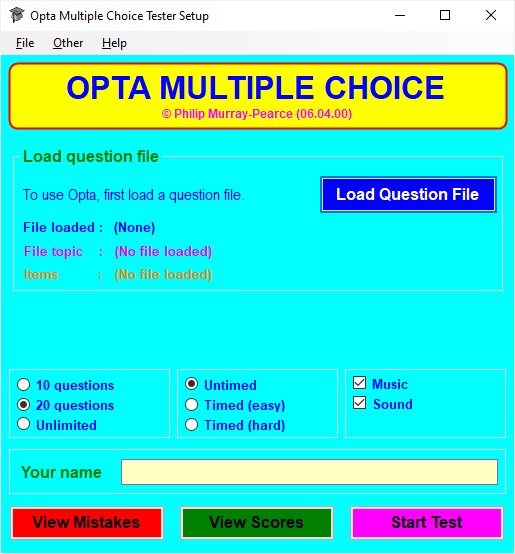
When you first run Opta , the program displays a Setup window.
Start at the top of the window in the frame headed Load question file.
Click on the Load Question File button and choose the question list file you wish to be tested on; this will be a text (.txt) file .
Once a question file is loaded, the Setup window will alter accordingly, as in the following example:-
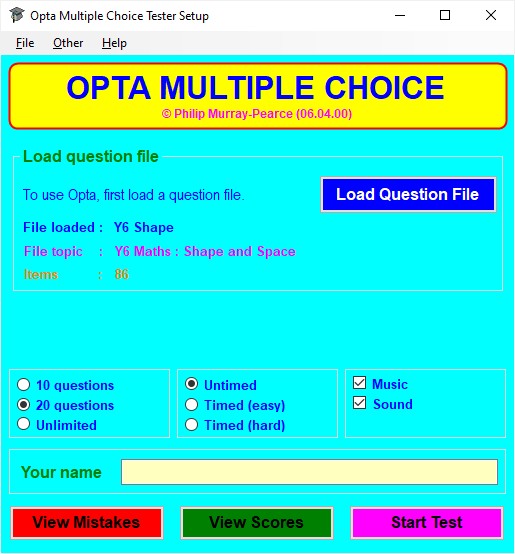
Details of the loaded question file are shown along with the following choices:-
If you have the single-user version of Opta, type your name in the box labelled Your name (in the network version, the logon name of the user is entered here automatically).
When you are ready to start a test, click on the purple Start Test button.
Alternatively, click on either of the other two buttons.
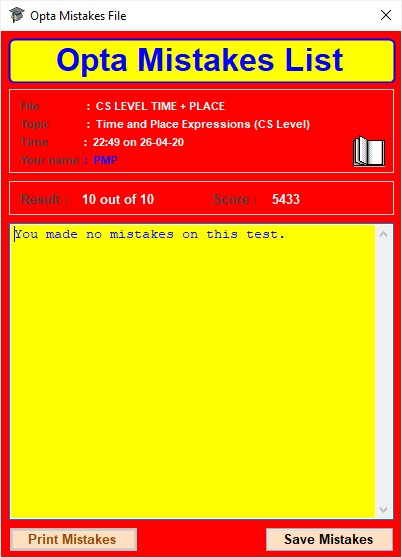
View Mistakes
(see Viewing
test mistakes ) displays a list of any errors made on
the last test taken (on any fact file, not necessarily the currently loaded
one) by the current user; this list may be saved or printed out if
required.
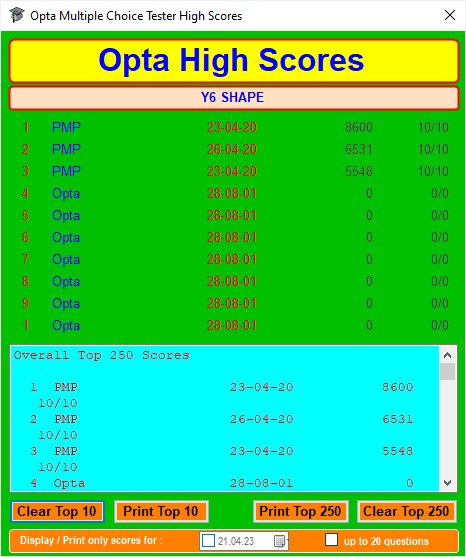
View Scores (see Viewing and printing high
scores ) displays the top 10 and top 250
scores previously obtained on tests on the fact file currently loaded; the scores
may be cleared or printed out if required.
[TOP]
Taking a Test
When you press the purple Start button in the Setup window, this window disappears and an Opta Test window, its design depending on the contents of the question file, replaces it.
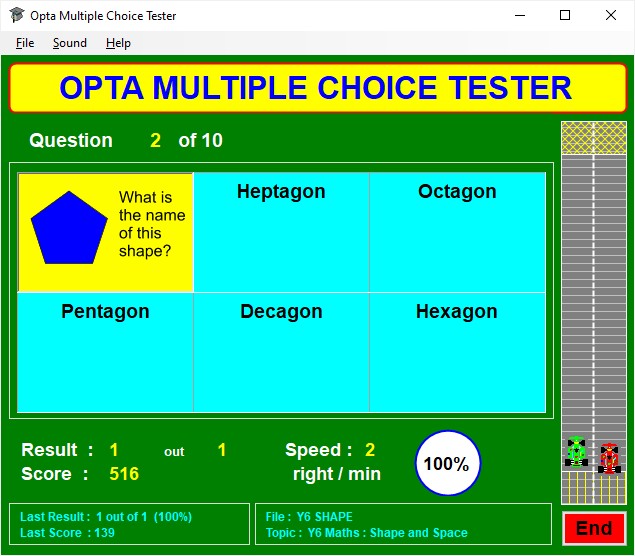
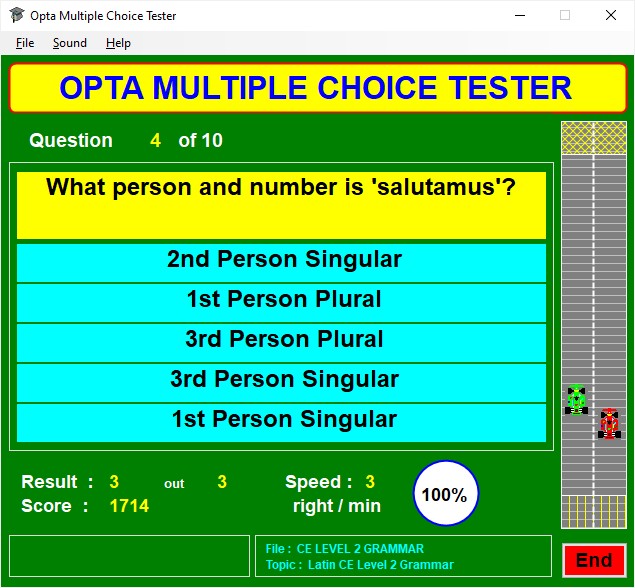
Questions appear in the yellow box .
Answer by clicking on whichever is correct of the five light blue boxes . If you are right, the box will turn green; if you are wrong, it will turn red and the box containing the correct answer will turn green.
For the next question, click on the yellow box .
The cars on the right of the window indicate your progress through the test; the green one represents yourself, its position along its track depending on how many questions you have answered correctly, and the red one represents an imaginary opponent, its position reflecting partly reflecting the number of questions you have anwered incorrectly.
Test and Score Information
Ending a Test
A test may end in one of four ways, after which a message box appears:-
Further Notes on Opta Tests
1. Select Sound from the File menu and then click on the appropriate menu item.
2. On the computer keyboard, press F3 to toggle music or F4 to toggle sound effects.
[TOP]
Viewing and Printing High Scores
Opta keeps a record of the top 250 scores achieved by users on a particular fact file. This is accessed from the Setup window. Lists of scores can be printed out.
Viewing High Scores
Click on the green View Scores button in the Setup window.
This opens the Opta High Scores window which shows the Top 10 scores in its upper part and a scrollable list of the Top 250 scores in its lower part.
Score information provided
It is possible to filter scores to show only those obtained on a specific date or on tests of no more than 20 questions .
Printing High Scores
In the Opta High Scores window, click on either the Print Top 10 or the Print Top 250 buttons according to which scores you wish to print out. Doing so brings up a standard Windows print dialogue box.
Note that, if you are using the network version of Opta, you must enter the 'print' password before being allowed to proceed with printing.
Score information provided:-
To save paper, Print Top 250 will print the first ten entries and then only those where Name is other than Opta (the default if there is no named user for an entry).
Clearing High Scores
If you wish to clear the high score tables, click on the Clear Top 10 and/or Clear Top 250 buttons in the Opta High Scores window. In the single user version of Opta, you will be asked to confirm your request; doing so clears the appropriate scores irreversibly.
Note that, if you are using the network version of Opta, you must enter the 'clear' password before any scores are cleared.
Further Notes on High Scores
[TOP]
Viewing, Printing, and Saving Test Mistakes
Opta keeps a record of the mistakes made by each separately named user on the last test (whether completed or not) that he/she attempted. This is accessed from the Setup window.
Viewing Test Mistakes
Click on the red View Mistakes button in the Setup window.
This opens the Opta Mistakes List window which shows details of the test taken in its upper part and a scrollable list of any mistakes made by the user on that test in its lower part.
The intention of the mistakes list is to highlight any test items which may be causing persistent problems so that learning effort can be concentrated on these.
The mistakes list can be saved as a rich text file or printed by clicking on the Save Mistakes or Print Mistakes button respectively.
Further Notes on Mistake Lists
Mistake list files are stored as text files within the Opta application folder in the folder MistakeFiles; file names are of the form M_UserName.txt. It is recommended that you do not edit these files manually.
[TOP]
Preparing Question Lists for Use with Opta
Files, Lists, and Items
Question lists for Opta are stored as text (.txt) files; these can be prepared using any text editor, such as Notepad or Wordpad.
Files are stored within the Opta application folder in the folder OptaFile.
If the material involves images, these may be .jpg, .gif , or .bmp files; they are stored in the folder OptaPicture in a sub-folder with the same name as the question file. The maximum display size for an image is 175 x 120 pixels .
The file should be saved with encoding set as Unicode, UTF-8 or ASCII + NCR ; if the wrong encoding is used, the file will either be unloadable by Opta or the contents will display incorrectly in tests.
A file must contain at least 10 items and no more than 100; each item must consist of a question and 2-5 answers, the first of which is correct and the others incorrect .
An item consists of a minimum of 3 and a maximum of 6 separate lines of information , as follows :-
Line 1 : Question
Line 2 : Correct
answer
Line 3 : Incorrect answer 1
Line
4 : Incorrect answer 2 (if
needed)
Line 5 : Incorrect answer 3 (if needed)
Line 6 : Incorrect answer 4 (if needed)
Each line
may be up to around 300
characters long but a maximum of around 50 characters is advisable
for clarity.
If a line starts with @, the rest of
the line must be the name of an image (gif, jpg, or bitmap) file in the OptaPicture
folder in a sub-folder with the same
name as the current question file (as saved in the OptaFile folder
or any sub-folder within it).
Question List File Format
The first line of an Opta question file must be :-
* Opta Question File
Next should be a line beginning with # showing the topic of the questions in the file in the format
e.g. # Y6 Maths : Shape and Space
The remainder of the file will consist largely of the actual items to be tested (each consisting of the six lines outlined above).
Comments, which will not appear in Opta tests, may be added to a file at any point.
A comment must be on its own line, which must start with a. (full stop)
.Typically details of the creation date and author of a file might be placed somewhere after the first two lines;
another use would be to identify each item in the file by a number (as in the example further down).
The code %1 on a line of its own may (optionally) be included at any point before the first item. This changes the default Opta test window format to show the question box at the top centre and all the answer boxes each in a separate row beneath (instead of the question box being at the top left with two answer boxes to its right and another row of three answer boxes beneath).
Text Formatting Codes
By default, lines of text used for items appear centered in black in the Arial font at 18 pt ; if text does not fit at the default size, this is reduced automatically to the next largest possible.
The appearance of text may optionally be enhanced by the following formatting codes:-
Almost all codes must be enclosed in braces i.e. {
.. .} .
The exceptions
are the codes to indicate change of font or font size, which start with ! (exclamation mark).
Colours:
{K} black {R} red
{Y} yellow
{G} green {B} blue {C} cyan {M} magenta
{k} dark grey {r}
dark red
{y} dark yellow
{g} dark green
{b} dark blue {c} teal {m} dark magenta
{w} light grey {p}
pink
{W}
white
Styles :
{b+} bold
on {b-} bold off
{i+}
italics
on {i-} italics off
{u+} underline on
{u-} underline off
{u.} dotted underline
on {u~} wavy underline on
{S+} superscript
on {s+} subscript
on {s-} super/subscript off
Alignment : {la} left align {ra} right align {ca} centre align {ja} justify
Font
: |f0 Arial
|f1 Arial Narrow
|f2 Arial
Unicode |f3 Times New Roman
|f4 Comic Sans MS |f5
Courier
New |f6 Symbol
|f7 Gentium
|f10 SPIonic [Greek] |f11 KadmosU [Greek] |f12 Ezra SIL [Hebrew] |f13 Scheherazade [Arabic]
|f14 Uttara [Devanagari]
Font Size : |fsX where X is the size in points ×2 (e.g. |fs28 gives a 14 point font )
The Font
and Font Size codes must be followed by a space (the character at the start
of these codes is | on the key to the left of Z on a standard keyboard).
The other codes must not be
followed by a space .
Unicode Characters
Characters with ASCII codes 32-127 (i.e. Basic Latin) and 160-255 (i.e. Latin-1 Supplement ) can be directly entered into question lists.
Others (e.g. mathematical symbols or non-Latin scripts) should be entered in the form &#N; , where N is a decimal integer of 3-5 digits from 256-65535 representing the Unicode value for the character.
e.g.1. τ is the Greek letter tau
2. ∩ is the mathematical symbol ∩
For further guidance, see the example below of parts of typical files and look at the question files supplied with Opta.
Example Question List Files (These files would be saved with encoding Unicode, UTF-8 or ASCII + NCR.)
A. (illustrating use of images)
* Opta Question File
. File must be in 'ASCII + NCR' or 'Unicode, UTF-8' format to show symbols e.g. ½, ², °, ∩ correctly.
. The name of this file is Y6 Shape.txt ; its images are therefore in a sub-folder named Y6 Shape in the OptaPicture folder.
# Y6 Maths : Shape and Space
. Transformations
.
Revolutions
. Angles
. Polygons
. Co-ordinates
. Metric units
.
Measurement scales
. Perimeter and area
. Volume and surface area
.
Solids and nets
. Bearings
.
Mathematical terminology
.1
If a shape can be
folded exactly in half, what sort of symmetry does it
have?
Reflection
Rotation
Translation
Parallel
Vertical
...
.31
What type of triangle has (only) two of its sides
equal in
length?
Isosceles
Equilateral
Scalene
Right-angled
Irregular
.32
How many lines of
symmetry does a kite have?
1
3
2
4
0
.33
Which shape is a
rhombus?
@Rhombus.gif
@Parallelogram.gif
@Trapezium.gif
@Kite.gif
@Rectangle.gif
.34
@PentagonQ.gif
Pentagon
Octagon
Decagon
Hexagon
Heptagon
.35
A pentagon has 5 sides.
True
False
B. (illustrating use of text formatting codes)
* Opta Question File
# Greek and Roman Gods and Goddesses
.1
What is the name of the {g}Greek{K} god of the
{m}sea{K}?
Poseidon
Neptune
Zeus
Jupiter
Apollo
.2
What is the name of the {g}Roman {m}king of the
gods{K}?
Jupiter
Zeus
Juno
Hera
Saturn
...
.18
Who was the {g}Greek{K} goddess of the
{m}Underworld{K} (wife of
Hades)?
Persephone
Demeter
Hekate
Hestia
Artemis
.19
Which of these was {R}NOT{K} a {g}brother or
sister{K} of
{m}Zeus{K}?
Apollo
Hera
Poseidon
Hades
Demeter
.20
How many {g}brothers and sisters{K} did
{m}Zeus{K}
have?
5
3
0
8
1
[TOP]
Music Files
Opta is supplied with a selection of music files to act as a background during tests. These files may be changed if desired.
Music
Up to 100 different MIDI background tunes may be used with Opta. Their files (type .mid) are stored in the Opta application folder in the folder Files and must be named consecutively midi00.mid, midi01.mid, midi02.mid, ..., midi98.mid, midi99.mid. MIDI file size is best kept under 30k. Simply substitute your own MIDI files for the ones provided, renaming them appropriately.
If you wish a MIDI tune to start or end at a point other than its normal one (for example, to play only a section of the tune), this may be achieved by creating a text file (in the Files folder) with the same name as the corresponding MIDI file (e.g. midi00.txt to go with midi00.mid) and consisting of up to two lines, the first containing the number indicating the start point and the second the number for the end point. A line left blank or containing a number less than or equal to zero indicates a normal start or end point.
[TOP]
Opta Network Version
There are two versions of Opta, single user and network. The network version allows users on a network to compete with one another and/or for their test results to be compared.
Network Version Differences
Password File
Supplied with the network version is a password file Password.txt; this is found within the Opta application folder in the Files folder.
This contains two passwords, each on a separate line. The first is the password for printing or clearing the Top 10 high scores and the second for printing or clearing the Top 250. If no passwords are provided, or if the Password.txt file is not present, both passwords default to the word password (in lower-case letters).
The two passwords may be changed to suit the program administrator.
User Name Format File
Supplied with the network version is the file NameFormat.txt; this is found within the Opta application folder in the Files folder.
The first line of the file must be one of four possible format codes :- ULU, UL, U, or L.
As indicated in the file, each code affects the way in which user logon names will be displayed in Opta (particularly in High Score tables).
The program administrator should choose the code which best matches the format used for logon names on his/her network.
[TOP]