Latin Verb Master
Using Latin Verb Master
Latin Verb Master allows you to test yourself in various ways on files of verbs previously saved. A verb file consists of up to 1000 items arranged in up to 100 separate lists.
[TOP]
Setting Up a Test
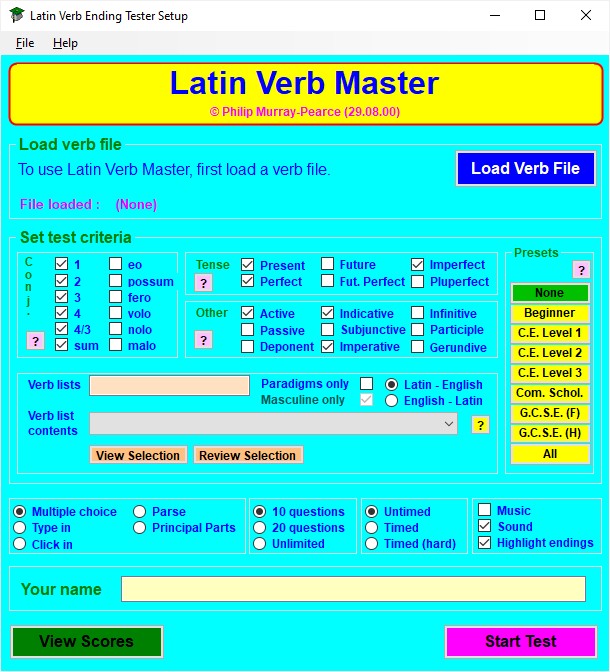
When you first run Latin Verb Master, the program displays a Setup window.
Start at the top of the window in the frame headed Load verb file.
Click on the Load Verb File button and choose the verb list file you wish to be tested on; this will be a text (.txt) file .
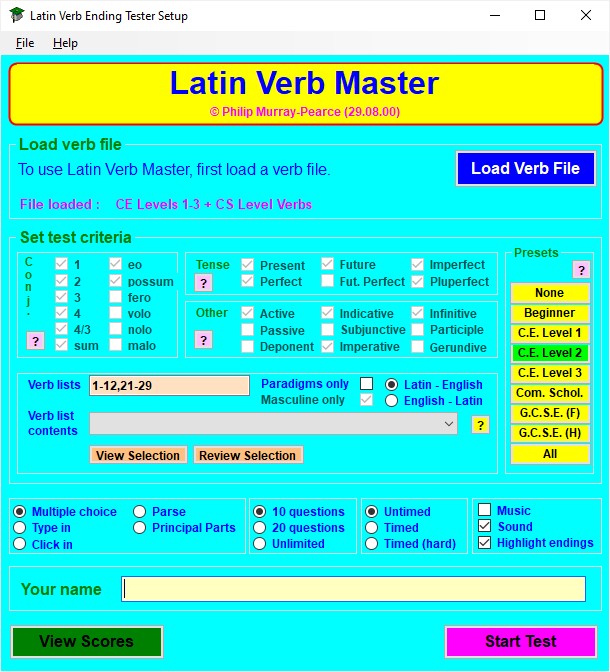
Once a verb list file is loaded, the Setup window will alter accordingly, as in the following example:-
Now move to the area headed Set test criteria.
The upper part allows you to select which conjugations, tenses, voices, moods, and other forms you wish to be tested on; there is also a column of Presets (mainly relating to 13+ school entrance examinations) on the right. By default, Presets is set to None; in this situation, select the verb parts required by ticking the relevant individual boxes beside them. Alternatively, you can select a preset and the appropriate boxes will be ticked automatically.
Below the verb parts are various boxes.
The Verb lists box shows the verb lists you wish to be tested on; when you first load a verb file, all lists within that file are by default selected. The Verb list contents box gives information on the contents of each list within the loaded file (if this information has been provided by the creator of the file).Choose the verb lists you wish to be tested on by typing their numbers in the Verb lists box. Numbers must be separated by a comma; groups of lists may be indicated by a hyphen. For example :- 3,5-7,10-15,20 selects lists 3, 5, 6, 7, 10, 11, 12, 13, 14, 15, and 20. You may also select lists by clicking on them in the Verb list contents box.
Ticking the Paradigms only box restricts tests to only those verbs chosen as paradigms by the creator of the verb file.
If your selection of verb parts includes forms using the Latin Perfect Passive Participle stem, ticking the Masculine only box restricts any test questions on these to e.g. portatus est (and not portata est or portatum est ).
The 'direction' (i.e. Latin -English or English-Latin ) of the test may be set by clicking on one of the two radio icons indicating the languages; English-Latin is available only for Multiple choice and Type in tests.
You may also choose :-
Clicking on
the pink and yellow ? buttons gives further information on
the topic area they are attached to.
Please note that, if
you are using the Demo version of Latin Verb
Master, certain options will be unavailable. In particular,
tests may be on Present,
Imperfect, & Perfect Active Indicative only and they may
have no more than 10 questions
.
Once a verb list file has been loaded, two buttons will appear below the Verb list contents box; each opens a new window when clicked on:-
Review Selection
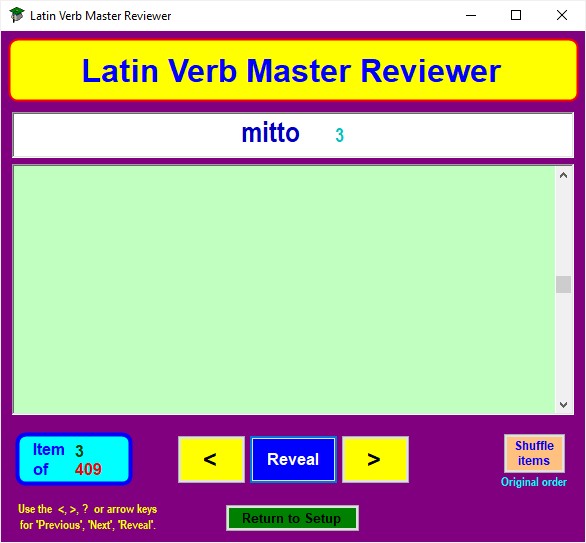
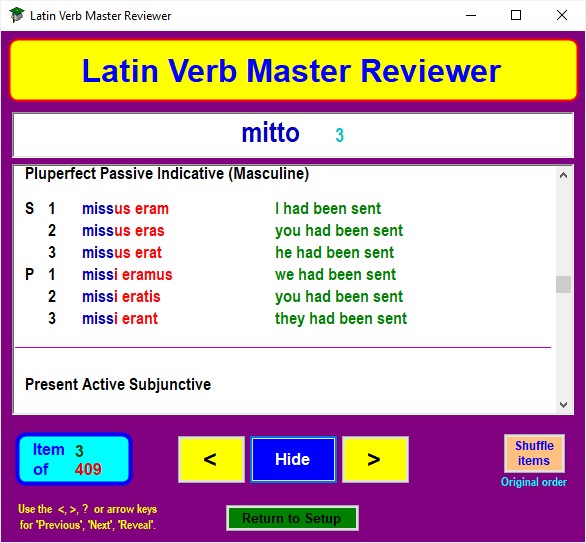
This allows you to view the list of verbs you have included in your selection for testing, optionally displaying the full conjugation as you do so. Use the right-arrow on your keyboard or the yellow > button in the Review window to move forward through the list and the left-arrow or yellow < button to move back . Use ? on your keyboard or the Reveal button to display the full conjugation of the current verb; to hide this, use ? again or the Hide button. By default, verbs are listed in the order they were entered by the creator of the verb file but they can also be shuffled into a random order by clicking on the Shuffle items button. Latin endings are shown in colours different from the stem if Highlight endings is selected in the Setup window.
View Selection
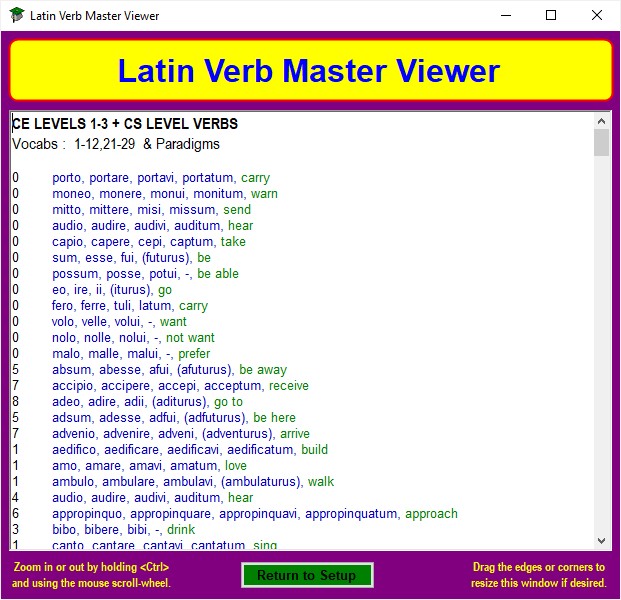
This allows you to see the verbs you have selected for testing in the order as entered by the file's creator. The window size is adjustable and it is possible to zoom in/out on the list of items.
If you have the single-user version of Latin Verb Master, type your name in the box labelled Your name (in the network version, the logon name of the user is entered here automatically).
When you are ready to start a test, click on the purple Start Test button.
Alternatively, click on View Scores (see Viewing and printing high
scores ) to display the top 10 and top 250 scores
previously obtained on tests on the verb file currently loaded; the scores
may be cleared or printed out if required.
[TOP]
Taking a Test
When you press the purple Start button in the Setup window, this window disappears and one of the Latin Verb Master Test windows replaces it.
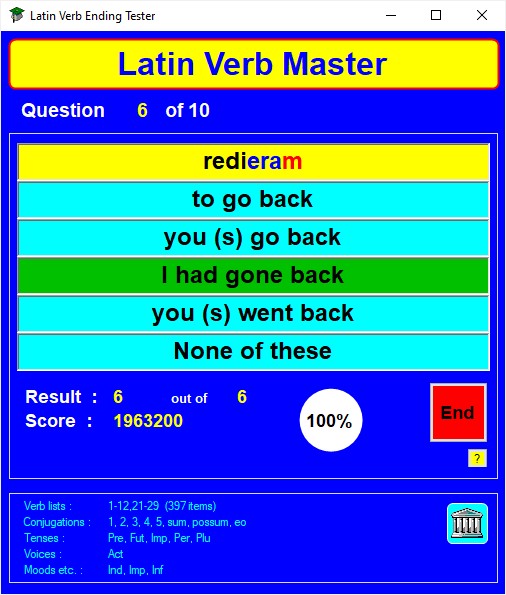
Questions appear in the yellow box .
Answer by clicking on whichever is correct of the five light blue boxes . If you are right, the box will turn green; if you are wrong, it will turn red and the box containing the correct answer will turn green.
For the next question, click on the yellow box .
A vocabulary file may have been written to make use of categories of items e.g. nouns, verbs, etc. If so, and if the categories option has been selected in the Setup window, the five possible answers in the light blue boxes will be of the same category e.g. all nouns or all verbs (as long as at least 10 items of that category are in the vocabulary lists selected for inclusion in the test).
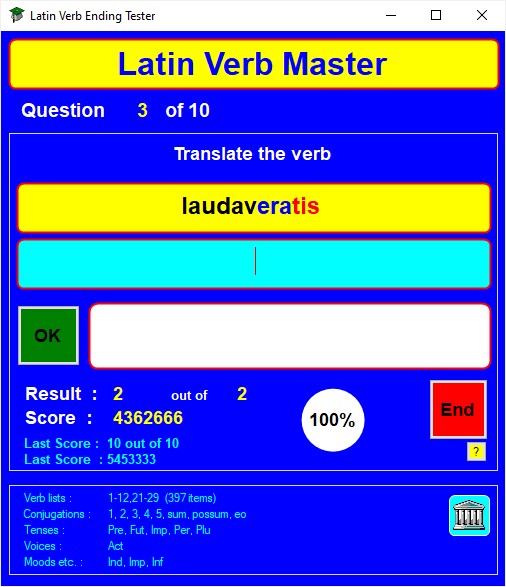
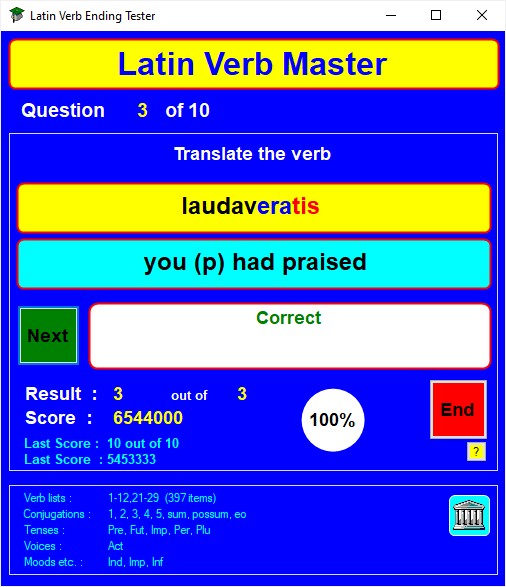
Questions appear in the yellow box .
Type your answer in the light blue box and click on the OK button or press the Enter key.
If your answer is correct, the white box below will indicate this. If it is wrong, the white box will show the correct answer.
Note that a correct answer is one where the verb matches the one given in the verb file and the format is as prescribed by the program (though case and extra spaces typed at the beginning or end of an answer are always ignored). So, for example, if the verb file contains amo, amare, amavi, amatum, love and the question is amas, the only correct answer is you (s) love (and not e.g. you (s) like or you love (s) or you (s) are loving).
For the next question , click on the Next button or press the Enter key.
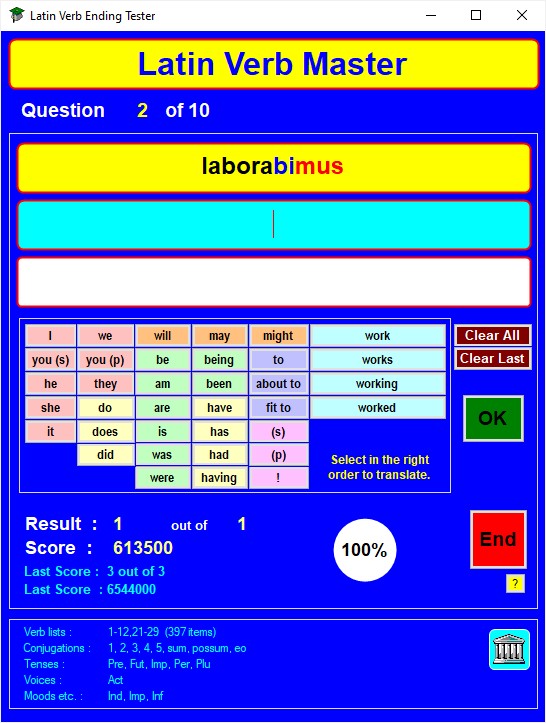
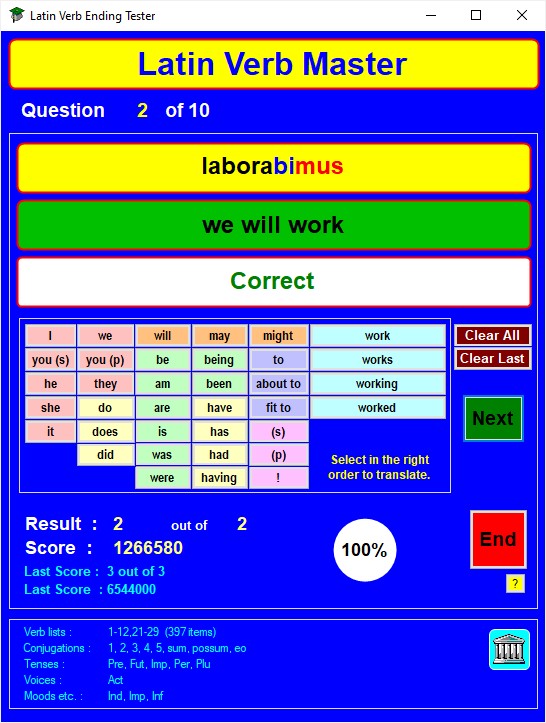
This works like the Type-In Test but, instead of typing in answers, you click on its component parts to build up an answer in the blue box. The component parts must be typed in the correct order but the most recent part entered can be cleared by clicking on the Clear Last button and everything clicked on so far can be cleared by clicking on the Clear All button.
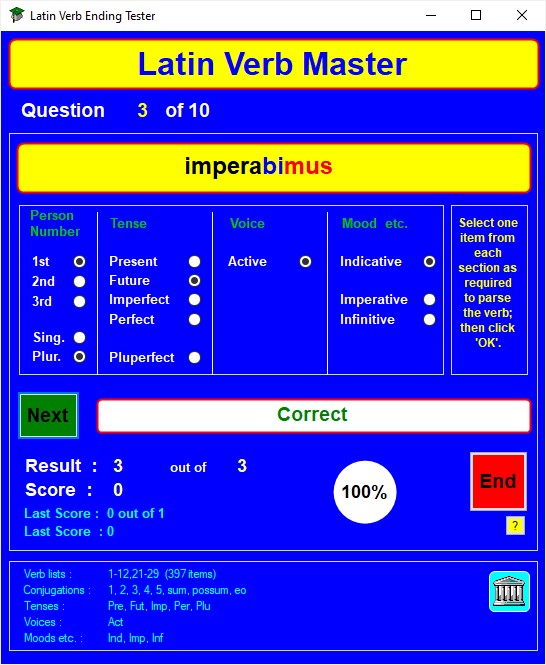
Questions appear in the yellow box .
Enter your answer by clicking on the appropriate radio icons in the columns below the question; then click on the OK button or press the Enter key.
If your answer is correct, the white box below will indicate this.
If it is wrong, the white box will display this and items corresponding to the correct answer will appear in green in the radio icons columns .
For the next question , click on the Next button or press the Enter key.
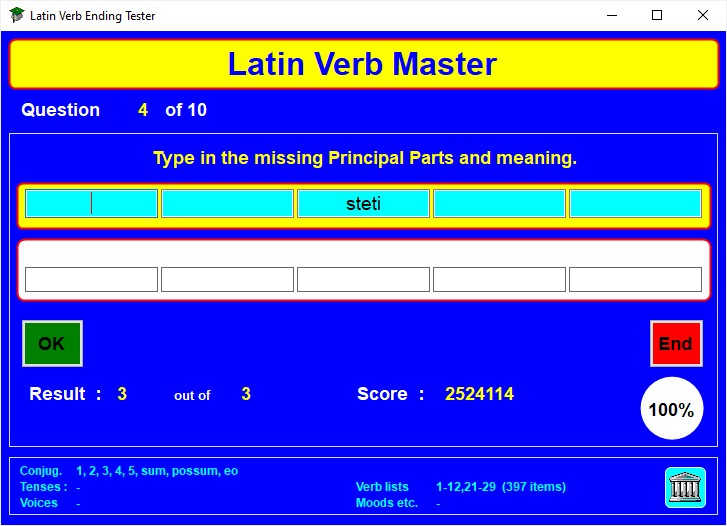
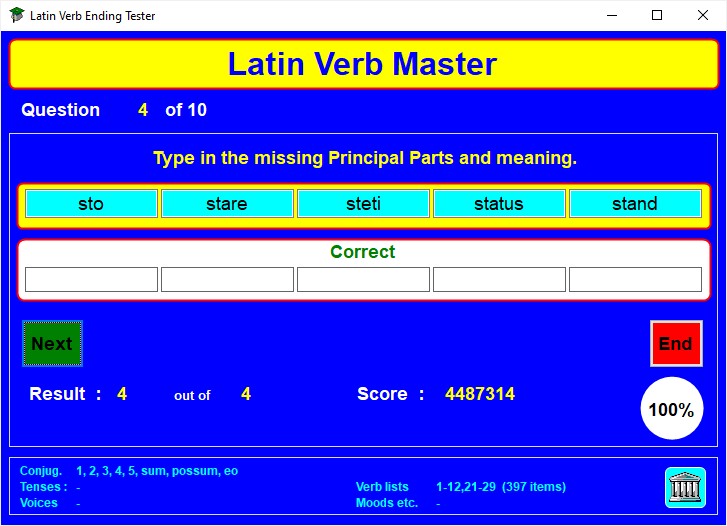
Each question appears in one, randomly chosen, of the light blue boxes within the yellow panel .
Type your answers in the white boxes within the white panel below and click on the OK button or press the Enter key.
If your answer is correct, the white panel below will indicate this. If it is wrong, the white boxes will show the correct answer.
Note that a correct answer is one where the verb meaning matches the one given in the verb file. Case and extra spaces typed at the beginning or end of an answer are always ignored. The form of the 4th Principal Part may be either the Perfect Passive Participle (e.g. amatus) or the Supine (e.g. amatum ). So, for example, if the verb file contains amo, amare, amavi, amatum, love , the meaning could not be given as like in the answer.
For the next
question , click on the Next button or press the Enter key.
Test and Score Information
Ending a Test
A test may end in one of four ways, after which a message box appears:-
Further Notes on Latin Verb Master Tests
1. Select Sound from the File menu and then click on the appropriate menu item.
2. On the computer keyboard, press F3 to toggle music or F4 to toggle sound effects.
[TOP]
Viewing and Printing High Scores
Latin Verb Master keeps a record of the top 250 scores achieved by users on a particular vocabulary file. This is accessed from the Setup window. Lists of scores can be printed out.
Viewing High Scores
Click on the green View Scores button in the Setup window.
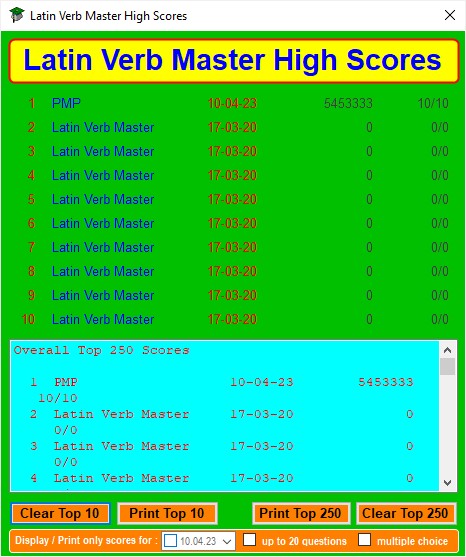
This opens the Latin Verb Master High Scores window which shows the Top 10 scores in its upper part and a scrollable list of the Top 250 scores in its lower part.
Score information provided
It is possible to filter scores to show only those obtained on a specific date, on tests of no more than 20 questions, and/or on just multiple-choice tests.
Printing High Scores
In the Latin Verb Master High Scores window, click on either the Print Top 10 or the Print Top 250 buttons according to which scores you wish to print out. Doing so brings up a standard Windows print dialogue box.
Note that, if you are using the network version of Latin Verb Master, you must enter the 'print' password before being allowed to proceed with printing.
Score information provided
To save paper, Print Top 250 will print the first ten entries and then only those where Name is other than Latin Verb Master (the default if there is no named user for an entry).
Clearing High Scores
If you wish to clear the high score tables, click on the Clear Top 10 and/or Clear Top 250 buttons in the Latin Verb Master High Scores window. In the single user version of Latin Verb Master, you will be asked to confirm your request; doing so clears the appropriate scores irreversibly.
Note that, if you are using the network version of Latin Verb Master, you must enter the 'clear' password before any scores are cleared.
Further Notes on High Scores
[TOP]
Viewing Verb Lists
Reviewing a Verb List or Selection
Click on the orange Review Selection button in the Setup window.
This opens the Latin Verb Master Reviewer window, which shows the contents of the verb lists selected in the Setup window Selection box verb by verb.
Each Latin verb is displayed in the white box ; its conjugation with English meanings is shown below this. The content of the white box is always visible; the content of the box below is initially hidden.
Click on the < and > buttons to move backwards or forwards through the verbs. If preferred, the left-arrow and right-arrow or the < and > keys can be used instead of the buttons.
Click on the Reveal button to show the contents of the hidden box. If preferred, the up-arrow, down-arrow, or ? key can be used instead of the button.
The number of items and the number of the current item being reviewed are shown in a blue box to the left beneath the verb display panels.
Clicking on the orange Shuffle button to the right beneath the verb display panels randomly changes the display order of the verbs being reviewed; the text on the button will also change to Restore . Clicking on the button when its text is Restore will return the review verbs to their original order.
The Reviewer window is resizable within certain limits to allow more of a verb conjugation to be displayed at once.
It is possible to zoom in / out on the display panels by holding down the Ctrl key and using your mouse scroll-wheel .
Viewing a Vocabulary List or Selection
Click on the orange View Selection button in the Setup window.
This opens the Latin Verb Master Viewer window, which shows the contents of the verb lists selected in the Setup window Selection box in a single list.
You can zoom in / out of the displayed list by holding down the Ctrl key and using your mouse scroll-wheel .
The Viewer window is resizable within certain limits for convenience.
General
Viewing a list or selection may be helpful as part of the verb grammar learning process.
It also lets you see what English meanings are allowable in the various types of test.
[TOP]
Preparing Verb Lists for Use with Latin Verb Master
Files, Lists, and Items
Verb lists for Latin Verb Master are stored as text (.txt) files; these can be prepared using any text editor, such as Notepad or Wordpad.
Files are stored within the Latin Verb Master application folder in the folder Vocabs.
The file should be saved with encoding set as Unicode or UTF-8 ; if the wrong encoding is used, the file will either be unloadable by Latin Verb Master or the contents will display incorrectly in tests.
A file must contain at least 20 verbs and no more than 1000. The verbs may be divided into up to 100 lists.
A verb list item consists of seven parts separated by | (the shifted \ character to the left of Z on a standard keyboard), as follows :-
Verb List File Format
The first line of a Latin Verb Master verb list file must be :-
* Latin Verb Master Data File
Following should be lines showing the contents corresponding to each verb list number (though these lines may appear at any point within the file).
The contents for each number must appear on separate lines beginning with # in the format :-
#N Contents (where N is the verb list number - 0 indicates a paradigmatic verb)
The remainder of the file will consist largely of the actual verbs (each made up of the seven parts outlined above) in the format :-
Latin Present Stem|Latin Perfect Stem|Latin Supine Stem|English Present Stem|English Perfect Stem|English Perfect Passive Participle Stem|Verb list number
Comments, which will not appear in Latin Verb Master tests, may be added to a file at any point.
A comment must be on its own line, which must start with a . (full stop).
Typically details of the creation date and author of a file might be placed somewhere after the first two lines.
Please note the following if creating your own verb file or modifying an existing one.
1. The first 5 verbs should be paradigmatic
ones for the main and mixed
conjugations (my own preferences for these are as below but these can be altered):-
1: porto, 2: moneo, 3: mitto, 4: audio, 5 (mixed 4/3): capio
The next 7 verbs should be:-
sum, possum, eo,
fero, volo, nolo, malo
Take care if altering this section; in particular, there must be only one entry for each conjugation and the last part of each entry must be 0.
2. Do not
include :-
a) more than one of a
group of Latin verbs with confusable parts other than the following (which are
accounted for within Latin Verb Master
):-
sum / edo = eat / edo = produce
video / viso
facio / fio
tollo / suffero
do / dedo
prosum / prodo
cado / caedo
contineo / contendo
patior / pando
verto / verro
consto / consisto
insto / insisto
persto / persisto
frico / frigo / frigeo
appello = call / = drive
fundo = found / = pour
mando = entrust / = chew
educo = rear / = lead
dico = dedicate / = say
indico = disclose / = declare
veneo / venio
cerno / cresco
decerno / decresco
mulceo / mulgeo
b) defective and impersonal
(or English reflexive) verbs
e.g. coepi, memini, odi, aio, inquam, licet,
pluit, vescor
c) Latin verbs sharing the same English meaning unless
by:-
i)
using synonyms (e.g. defeat, conquer
)
ii) indicating the Latin
verb in square brackets
after the English Present Stem
e.g. neca,,,kill
[neco],,,1
occid,occid,occis,kill [occido],,,7
Note
that there must be (only) one space before [ and a comma
(straight) after ].
3. Verb entries
should be formatted as follows:-
Each entry has seven parts :-
a) Latin
Present Stem for Conjugations 1-5
or
Latin 1st
Singular Present Indicative Active for sum,
eo, fero, volo, nolo, malo, edo = eat, and
their
compounds
(variable prefixes pos-/pot-
for possum and pro-/prod- for prosum
are handled within the
program).
~ / # / % at the end of
the stem indicates
+Dat / +Gen / +Abl
respectively.
b) Latin Perfect Stem
(for Conjugations 1,2,4, include only if
not regular).
- denotes Deponent
verb.
+
denotes Semi-Deponent verb.
c) Latin Supine
Stem
(for Conjugations 1,2,4, and Deponents, include only if not
regular).
- indicates no Supine
Stem to form parts
from.
~
indicates no
Passive for Perfect / Future Perfect / Pluperfect
.
Initial $ (e.g. $claus) denotes
stem to be used only for the Future or
Perfect Participle and Infinitive
i.e. for a transitive verb
where Indicative or Subjunctive Passive forms are not to be
tested.
Initial * (e.g. *fugit) denotes
stem to be used only for the Future Participle
and Infinitive
i.e. for an
intransitive verb where no Passive forms are to be
tested.
(Future Participle forms
for orior, morior, ruo, lavo, iuvo, pario
are handled in the
program);
also
use * with quasi-passive verbs e.g. vapula,,*,be
beaten,have been,been,1
.
d)
English Present Stem.
Prepositional
verbs must have the preposition (or any other extra word) after the
Present Stem e.g. go up, set out, be afraid
of, know not
.
e) English Perfect (/Past/Preterite) Stem.
Do not include if regular i.e.
formed by adding -ed, -d after -e-, or by -y changing
to -ied
.
Do not
include any words (e.g. prepositions) apart from the Perfect Stem
itself
e.g. adeo,adi,*adit,go to,went,gone,8
nesci,,,know not,knew,known,8
f) English Perfect Passive Participle
Stem.
Do not include if regular
i.e. formed by adding -ed, -d after -e-, or by -y changing
to -ied
.
Do not include any words
(e.g. prepositions) apart from the PPP Stem itself.
g) Vocabulary group
(any number from 1 to 100
).
Use different groups to, for example, make it easier to test verb
types (e.g. Deponents, 3rd Conjugation) separately.
Parts a), d), & g) must always be included.
Parts b), c), e), & f) must be used only where strictly applicable.
For further guidance, see the entries
in the example file below.
4. There must be at least 10 verb entries, apart from the 12 paradigmatic verbs , in a list.
5. A Latin verb may appear in more than one
vocabulary group but, apart from the group number, its entries should be identical to avoid
confusion in testing
i.e. do
not enter e.g. both mone,,,warn,,,2 and mone,,,advise,,,2
.
6. The Latin Verb
Master program has been designed to
take into account the following irregular verbs :-
sum, possum, eo, fero, volo, nolo, malo, edo = eat and their
compounds .
fio can be included as a
semi-deponent verb i.e. fi,+,fact,become,became,become,1
.
Passive forms of
facio based on fio are handled within the
program.
7. In tests, Latin verbs are assumed to have standard
Classical endings even if alternatives (e.g. in poetry) are
attested
e.g. only amavisti and not amasti for
2nd Singular Perfect Indicative Active of amo
.
8. In tests:-
Passives of verbs taking the Dative will appear correctly in impersonal form e.g. mihi ignotum est .
3rd Person Imperatives, the Gerund, and Supines are not included.
Periphrastic tenses formed with the Future Participle or Gerundive are not included.
For further guidance, see the example below of parts of a typical file and look at the verb files supplied with Latin Verb Master.
Example Verb List File (This file would be saved with encoding Unicode or UTF-8)
* Latin Verb Master Data File
. Latin Verbs for 13+ Common Entrance & Academic Scholarship Examinations
. ISEB List 2015 with additions
porta,,,carry
[porto],,,0
mone,,,warn,,,0
mitt,mis,miss,send,sent,sent,0
audi,,,hear,heard,heard,0
capi,cep,capt,take
[capio],took,taken,0
sum,fu,*fut,be,have been,been,0
possum,potu,-,be
able,have been,been,0
eo,i,*it,go,went,gone,0
fero,tul,lat,carry
[fero],,,0
volo,volu,-,want [volo],,,0
nolo,nolu,-,want
not,,,0
malo,malu,-,prefer,preferred,preferred,0
#1 C.E. Level 1 - Conjugation 1
#2 C.E. Level 1 -
Conjugation 2
#3 C.E. Level 1 - Conjugation 3
#4 C.E. Level 1 -
Conjugations 4,4/3
#5 C.E. Level 1 - Irregular (sum + Compounds)
#6 C.E.
Level 2 - Conjugation 1
#7 C.E. Level 2 - Conjugations 2,3,4,4/3 +
Irregular
#8 C.E. Level 3 - All Conjugations + Irregular
#9 C.S. Level -
Deponent (all conjugations)
#10 Additional Scholarship 1 - Irregular Stems
(all conj.)
#11 Additional Scholarship 2 - Irregular Stems (all conj.)
#12
Additional Scholarship 3 - Regular Stems (all conj.)
#21 C.E. Level 1 - Principal Parts A
#22 C.E.
Level 1 - Principal Parts B
#23 C.E. Level 2 - Principal Parts A
#24 C.E.
Level 2 - Principal Parts B
#25 C.E. Level 3 - Principal Parts A
#26 C.E.
Level 3 - Principal Parts B
#27 C.S. Level - Principal Parts
#28
Additional Scholarship - Principal Parts A
#29 Additional Scholarship -
Principal Parts B
absum,afu,*afut,be away,have
been,been,5
accipi,accep,accept,receive,,,7
adeo,adi,*adit,go
to,went,gone,8
adsum,adfu,*adfut,be here,have
been,been,5
adveni,adven,*advent,arrive
[advenio],,,7
aedifica,,$,build,built,built,1
ama,,,love,,,1
ambula,,*,walk,,,1
audi,,,hear,heard,heard,4
appropinqua~,,,approach
[appropinquo],,,6
bib,bib,-,drink,drank,drunk,3
canta,,,sing
[canto],sang,sung,1
capi,cep,capt,take
[capio],took,taken,4
clama,,$,shout,,,1
cog,coeg,coact,force,,,8
collig,colleg,collect,collect,,,7
cona,-,,try
[conor],,,9
conspici,conspex,conspect,catch
sight of,caught,caught,7
fugi,fug,*,run away,ran,run,7
ger,gess,$gest,carry
on,,,7
habe,,*,have,had,had,2
habita,,*,live,,,1
horta,-,,encourage,,,9
iaci,iec,iact,throw,threw,thrown,4
impera~,,,order
[impero],,,8
ineo,ini,*init,go in [ineo],went,gone,7
ingredi,-,ingress,go
in [ingredior],went,gone,9
interfici,interfec,interfect,kill
[interficio],,,8
gaude,+,gavis,rejoice,,,10
incipi,incep,incept,begin,began,begun,10
instru,intrux,intruct,organize,,,10
intelleg,intellex,intellect,understand,understood,understood,10
oblivisc#,-,oblit,forget,forgot,forgotten,10
ori,-,ort,rise,rose,risen,10
parc~,peperc,pars,spare,,,10
quaer,quaesiv,quaesit,look
for [quaero],,,10
quer,-,quest,complain,,,10
rapi,rapu,rapt,snatch
[rapio],,,10
rump,rup,rupt,break
[rumpo],broke,broken,10
succurr~,succurr,succurs,help
[succurro],,,29
sum,sumps,sumpt,take
[sumo],took,taken,29
ut%,-,us,use,,,29
veh,vex,vect,carry
[veho],,,29
[TOP]
Music Files
Latin Verb Master is supplied with a selection of music files to act as a background during tests. These files may be changed if desired.
Music
Up to 100 different MIDI background tunes may be used with Latin Verb Master. Their files (type .mid) are stored in the Latin Verb Master application folder in the folder Files and must be named consecutively midi00.mid, midi01.mid, midi02.mid, ..., midi98.mid, midi99.mid. MIDI file size is best kept under 30k. Simply substitute your own MIDI files for the ones provided, renaming them appropriately.
If you wish a MIDI tune to start or end at a point other than its normal one (for example, to play only a section of the tune), this may be achieved by creating a text file (in the Files folder) with the same name as the corresponding MIDI file (e.g. midi00.txt to go with midi00.mid) and consisting of up to two lines, the first containing the number indicating the start point and the second the number for the end point. A line left blank or containing a number less than or equal to zero indicates a normal start or end point.
[TOP]
Latin Verb Master Network Version
There are two versions of Latin Verb Master, single user and network. The network version allows users on a network to compete with one another and/or for their test results to be compared.
Network Version Differences
Password File
Supplied with the network version is a password file Password.txt; this is found within the Latin Verb Master application folder in the Files folder.
This contains two passwords, each on a separate line. The first is the password for printing or clearing the Top 10 high scores and the second for printing or clearing the Top 250. If no passwords are provided, or if the Password.txt file is not present, both passwords default to the word password (in lower-case letters).
The two passwords may be changed to suit the program administrator.
User Name Format File
Supplied with the network version is the file NameFormat.txt; this is found within the Latin Verb Master application folder in the Files folder.
The first line of the file must be one of four possible format codes :- ULU, UL, U, or L.
As indicated in the file, each code affects the way in which user logon names will be displayed in Latin Verb Master (particularly in High Score tables).
The program administrator should choose the code which best matches the format used for logon names on his/her network.
[TOP]